Installation of GPU Operator and Network Operator together#
AMD GPU Operator and AMD Network Operator could co-exist in the same Kubernetes cluster, here are the instructions to do the installation and uninstallation for the use case where 2 operators are working together.
K8s Cluster with AMD Network and AMD GPU Operators#
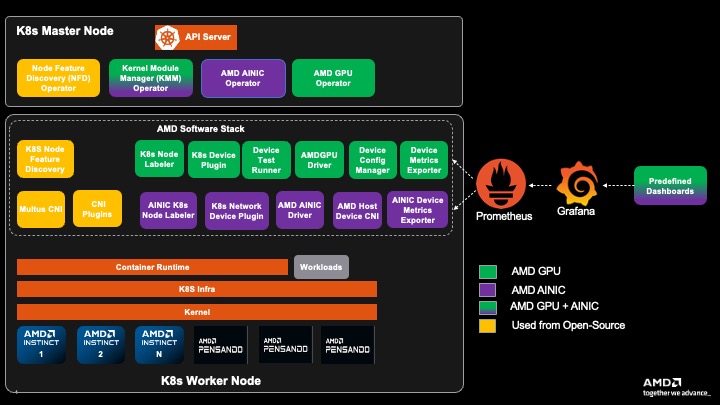
Installation#
1. Install Cert-Manager#
If cert-manager is already installed in your cluster, you can skip this step.
The Kubernetes cert-manager is a pre-requisite required by both AMD GPU and Network Operator to do the TLS certificate management.
Add the cert-manager repository:
helm repo add jetstack https://charts.jetstack.io --force-update
Install cert-manager:
helm install cert-manager jetstack/cert-manager \
  --namespace cert-manager \
  --create-namespace \
  --version v1.15.1 \
  --set crds.enabled=true
Verify the installation:
kubectl get pods -n cert-manager
Expected output:
NAME                                       READY   STATUS    RESTARTS   AGE
cert-manager-84489bc478-qjwmw             1/1     Running   0          2m
cert-manager-cainjector-7477d56b47-v8nq8  1/1     Running   0          2m
cert-manager-webhook-6d5cb854fc-h6vbk     1/1     Running   0          2m
2. Install AMD GPU Operator#
If AMD GPU Operator is already installed in your cluster, you can skip this step.
Please refer to AMD GPU Operator official documentation for detailed installation and configuration instructions. Here are the quick start instructions:
2.1 Add ROCm helm chart repository
# Add AMD GPU Operator helm repository
helm repo add rocm https://rocm.github.io/gpu-operator
helm repo update
2.2 Install AMD GPU Operator helm chart
The default command to install the chart is:
helm install amd-gpu-operator rocm/gpu-operator-charts \
      --namespace kube-amd-gpu --create-namespace \
      --version=v1.4.0
Different users may have various deployment scenarios, please consider configuring these helm options when installing the helm chart:
If you are using a VM based worker node:
case 1: Using AMD GPU in a Virtual Machine with VF-Passthrough, please set
amd-vgpuin the selector:helm install amd-gpu-operator rocm/gpu-operator-charts \ --namespace kube-amd-gpu --create-namespace \ --version=v1.4.0 \ --set-json 'deviceConfig.spec.selector={"feature.node.kubernetes.io/amd-gpu":null,"feature.node.kubernetes.io/amd-vgpu":"true"}'
case 2: Using AMD GPU in a Virtual Machine with PF-Passthrough, please set
amd-gpuin the selector:helm install amd-gpu-operator rocm/gpu-operator-charts \ --namespace kube-amd-gpu --create-namespace \ --version=v1.4.0 \ --set-json 'deviceConfig.spec.selector={"feature.node.kubernetes.io/amd-gpu":"true"}'
If your worker node doesn’t have inbox / pre-installed amdgpu kernel module loaded: Use GPU Operator to install specific version of out-of-tree
amdgpu-dkmskernel module.If you want to use AMD GPU Operator to install kernel module, you need to prepare an image registry and create corresponding secret to access your image registry if needed:
case 1: For the secure registry which requires credential:
# 1. prepare image registry to store driver image (e.g. dockerHub)
# 2. setup image registry secret:
# kubectl create secret docker-registry mySecret -n kube-amd-gpu --docker-username=xxx --docker-password=xxx --docker-server=https://index.docker.io/v1/
helm install amd-gpu-operator rocm/gpu-operator-charts \
      --namespace kube-amd-gpu --create-namespace \
      --version=v1.4.0 \
      --set deviceConfig.spec.driver.enable=true \
      --set deviceConfig.spec.driver.blacklist=true \
      --set deviceConfig.spec.driver.version=7.0.1 \
      --set deviceConfig.spec.driver.image=docker.io/myUserName/amd-driver-image \
      --set deviceConfig.spec.driver.imageRegistrySecret.name=mySecret
case 2: For the insecure image registry:
# prepare insecure image registry to store driver image
helm install amd-gpu-operator rocm/gpu-operator-charts \
      --namespace kube-amd-gpu --create-namespace \
      --version=v1.4.0 \
      --set deviceConfig.spec.driver.enable=true \
      --set deviceConfig.spec.driver.blacklist=true \
      --set deviceConfig.spec.driver.version=7.0.1 \
      --set deviceConfig.spec.driver.image=docker.io/myUserName/amd-driver-image \
      --set deviceConfig.spec.driver.imageRegistryTLS.insecure=true \
      --set deviceConfig.spec.driver.imageRegistryTLS.insecureSkipTLSVerify=true
then the driver builder pod will be triggered to build the amdgpu driver for your worker node
kube-amd-gpu default-build-lsnkw 1/1 Running 0 3s
2.3 Verify AMD GPU Operator installation
After installing AMD GPU Operator you should be able to see the operands (device plugin, metrics exporter, etc) are running and the AMD GPU resources are being advertised
kube-amd-gpu   default-device-plugin-h7rhq                                       1/1     Running   0          25s
kube-amd-gpu   default-metrics-exporter-qhx8s                                    1/1     Running   0          25s
kube-amd-gpu   default-node-labeller-zx4ww                                       1/1     Running   0          10m
$ kubectl get node -oyaml | grep amd.com/gpu
amd.com/gpu: "8"
amd.com/gpu: "8"
By default the AMD GPU Operator would install Node Feature Discovery (NFD) operator and Kernel Module Management (KMM), please make sure those 2 operators are up and running (either pre-installed or installed by AMD GPU Operator helm charts) after this step.
kube-amd-gpu   amd-gpu-operator-kmm-controller-d9d8d48bc-r86j7                   1/1     Running   0          10m
kube-amd-gpu   amd-gpu-operator-kmm-webhook-server-5c85557488-d8jbj              1/1     Running   0          10m
kube-amd-gpu   amd-gpu-operator-node-feature-discovery-gc-b8547dfb7-jw2x9        1/1     Running   0          10m
kube-amd-gpu   amd-gpu-operator-node-feature-discovery-master-6f587cd597-csbqv   1/1     Running   0          10m
kube-amd-gpu   amd-gpu-operator-node-feature-discovery-worker-6c66c              1/1     Running   0          10m
3. Install AMD Network Operator#
3.1 Install without duplicating NFD and KMM
After installing AMD GPU Operator you can start to install AMD Network Operator. Remember that we already installed NFD and KMM during installation of AMD GPU Operator, so you shouldn’t install them again when installing AMD Network Operator. Please disable the deployment of those 2 dependent operators when installing AMD Network Operator.
3.1.1 Add ROCm helm chart repository
# Add AMD Network Operator helm repository
helm repo add rocm-network https://rocm.github.io/network-operator
helm repo update
3.1.2 Install AMD Network Operator helm chart
helm install amd-network-operator rocm-network/network-operator-charts \
  -n kube-amd-network \
  --create-namespace \
  --set kmm.enabled=false \
  --set node-feature-discovery.enabled=false \
  --version=v1.2.0
Then during this step only the network operator and multus CNI pods would be brought up in the new namespace kube-amd-network:
kube-amd-network   amd-network-operator-multus-multus-h5jvp                          1/1     Running   0          17s
kube-amd-network   amd-network-operator-network-operator-charts-controller-ma2s7cs   1/1     Running   0          17s
3.2 (Optional) Install the IONIC kernel module
If your worker nodes don’t have inbox / pre-installed ionic kernel module and you want to re-use the existing KMM deployment to install ionic kernel module for AI NIC, you can follow the drivers installation section to install ionic kernel module for your worker nodes.
Note
You can keep all the Network Operator related image registry secrets in the
kube-amd-networknamespace. The KMM operator is able to manage the AMD Network Operator’s kernel module inkube-amd-networknamespace even though the KMM itself is deployed in another namespace.
If you configured the image registry correctly the KMM builder pod would be triggered to build IONIC kernel module for your worker nodes:
kube-amd-network test-networkconfig-build-8xktx 1/1 Running 0 9s
After the successful kernel module loading the device plugin would be up and running:
kube-amd-network test-networkconfig-device-plugin-4ghf4 1/1 Running 0 4m57s
3.3 Verify AMD Network Operator installation
After bringing up all the expected operands, the NIC resources should be advertised in the cluster:
# for example, for a VM-based worker node
$ kubectl get node -oyaml | grep amd.com/vnic
      amd.com/vnic: "8"
You can also trigger some workload to verify your cluster to make sure they are ready to use.
Uninstallation#
Please make sure to uninstall the AMD Network Operator helm chart first, then uninstall the AMD GPU Operator helm chart.
# Uninstall AMD Network Operator
helm delete amd-network-operator -n kube-amd-network --debug
# Uninstall AMD GPU Operator
helm delete amd-gpu-operator -n kube-amd-gpu --debug